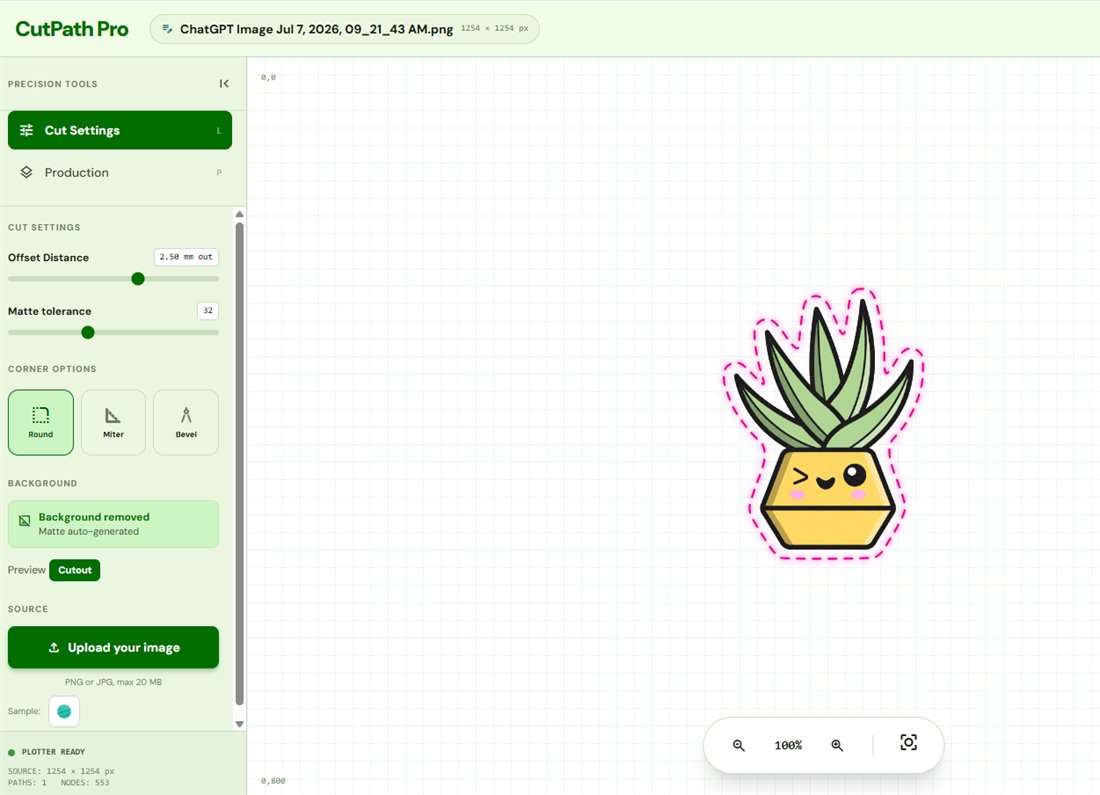
JPG to SVG Converter for Cut Files
JPG artwork always has a background - no transparency, no alpha channel. To cut around the subject instead of a big rectangle you need automatic background removal before tracing. That's the extra step CutPath Pro handles that generic PNG-to-SVG converters skip.
The JPG problem for cut files
A JPG can never have a transparent background - the format doesn't support alpha. Feed a JPG to a generic online SVG converter and you get one giant rectangle traced around the whole photo, plus every internal edge as a separate shape. The blade tries to cut through the artwork. What you actually need is:
- The background removed so the subject sits on transparency.
- One continuous cut line traced around the outline of the subject.
- An offset (2 to 3 mm) so the cut doesn't graze the edge of the print.
- The result exported as SVG with the cut path as a stroke on its own layer.
How the automatic background removal works
Upload a JPG (or a PNG on a solid background) and CutPath Pro's background-removal step runs first - it identifies the subject and lifts it off the background, replacing the background with transparency. The tracer then follows the subject outline. You see the result in the preview instantly, before spending a credit.
Works best on:
- Clear subjects on lighter backgrounds.
- Products photographed on white or coloured card.
- Illustrations exported from Procreate or Photoshop as JPG.
Struggles a little with:
- Hair, lace or fine feathers on busy backgrounds.
- Subjects the same colour as the background.
- Very low-resolution phone photos where JPG compression has smoothed the edges.
Resolution matters more for JPGs
JPGs have compression artefacts - small "blocks" of colour around edges. If the resolution is too low, those blocks get traced as bumps on the cut line. Recommended:
- 300 DPI at final print size - best result, smooth cut path.
- 150 DPI at final print size - works for stickers up to about 60 mm.
- Below 150 DPI - you'll see bumps on the cut line. Try converting to PNG at higher resolution first, or use the source artwork.
The workflow
- Upload the JPG. CutPath Pro removes the background and traces the subject.
- Adjust offset (default 2.5 mm - nudge lower for tight designs, higher for print-and-cut).
- Pick a corner style (Round is safest for weeding).
- Optionally add registration marks for your machine.
- Export as SVG (also available as DXF, EPS, PDF with CutContour spot).
One credit unlocks the design. Every re-download in every format is free from your My Files page.
Frequently asked
Can you convert a JPG to a cut file directly?
Yes. CutPath Pro removes the background before tracing so the cut line follows the subject, not the box.
Does the background need to be white?
No - automatic removal handles white, coloured and photographic backgrounds. Best on high-contrast subjects; struggles with hair on busy backgrounds.
What resolution should the JPG be?
300 DPI at final print size is ideal. 150 DPI works for stickers up to about 60 mm. Below 150 DPI the trace picks up compression artefacts as bumps.
Convert your first JPG free
Upload a JPG, background removed automatically, get a machine-ready SVG. No card, no watermarks.